
RESON GUIDE
How to use Learn in Reson
Analyze a continuous audio passage, review the suggested result and apply time-based resonance suppression with Reson’s Learn controls.
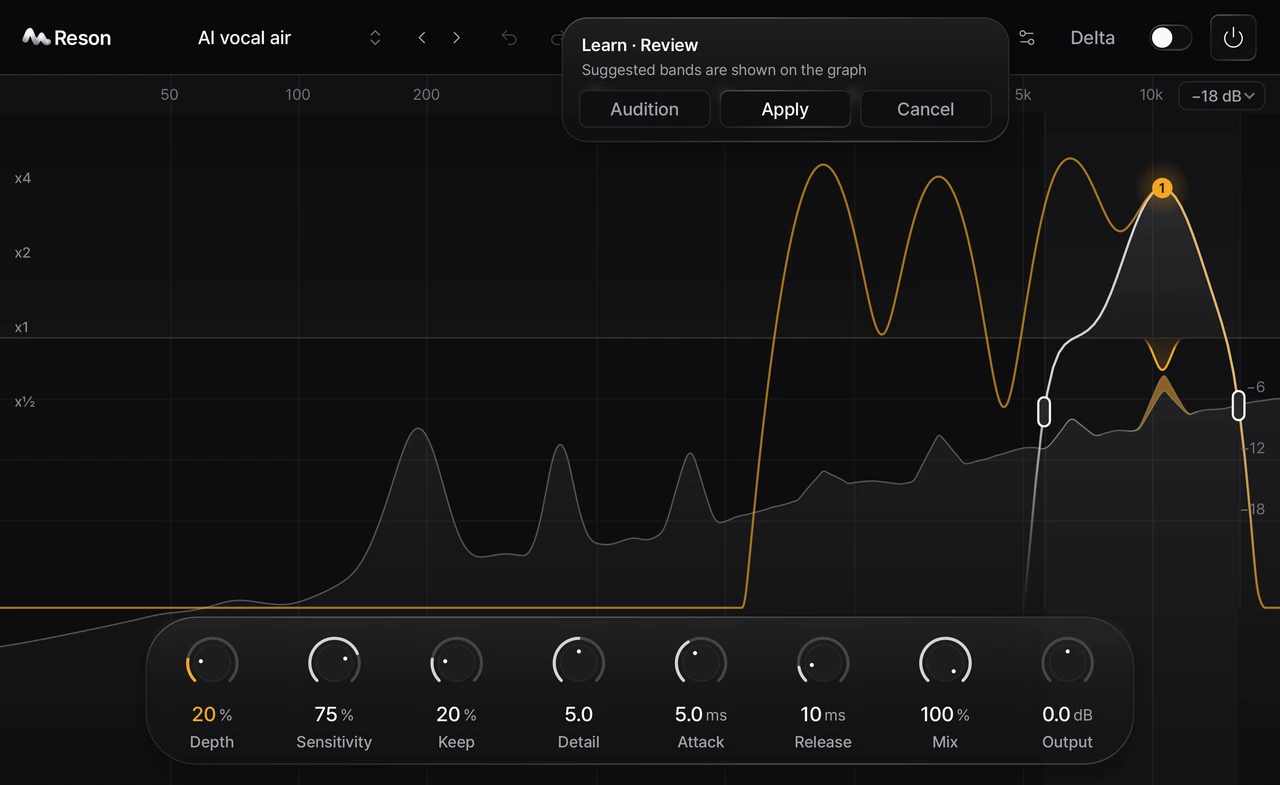
1. Analyze one continuous passage
Open Learn, start analysis and play the passage through Reson in your DAW. Learn follows the host timeline rather than a fixed eight-second recording. The current implementation supports one continuous region of up to 20 minutes. The host must provide playback position in seconds.
2. Stop and review
Stop the analysis when the passage is complete and inspect the result before applying it. A timeline jump, a loop returning to its start or missing host time information stops collection rather than joining unrelated passages. A passage shorter than one second or without a clear resonance may not produce an applicable result.
3. Apply and compare
Apply the result, then use Learn amount to adjust its contribution. Switch Learn on and off to compare it while keeping your manual settings. Listen to the full passage in context and adjust the processing to preserve details that matter to the recording.
After moving or editing audio
Learn uses the analyzed timeline positions; it does not identify the audio clip itself. If you move the clip, edit its timing or change the tempo so the positions no longer match, analyze it again. The current implementation does not merge several separate analysis regions or write DAW automation lanes.
Saving your work
Applied Learn results, their enabled state and amount are saved with the DAW project state. Unapplied analysis previews are not saved. User presets do not include the song’s time-based Learn data, and A/B settings share the instance’s Learn result. Save the project after applying a result you want to keep.